---
title: Settings
description: Every setting of Activity Monitor X, by tab.
---
Open Settings with ⌘, or Activity Monitor X > Settings…. It has four tabs.
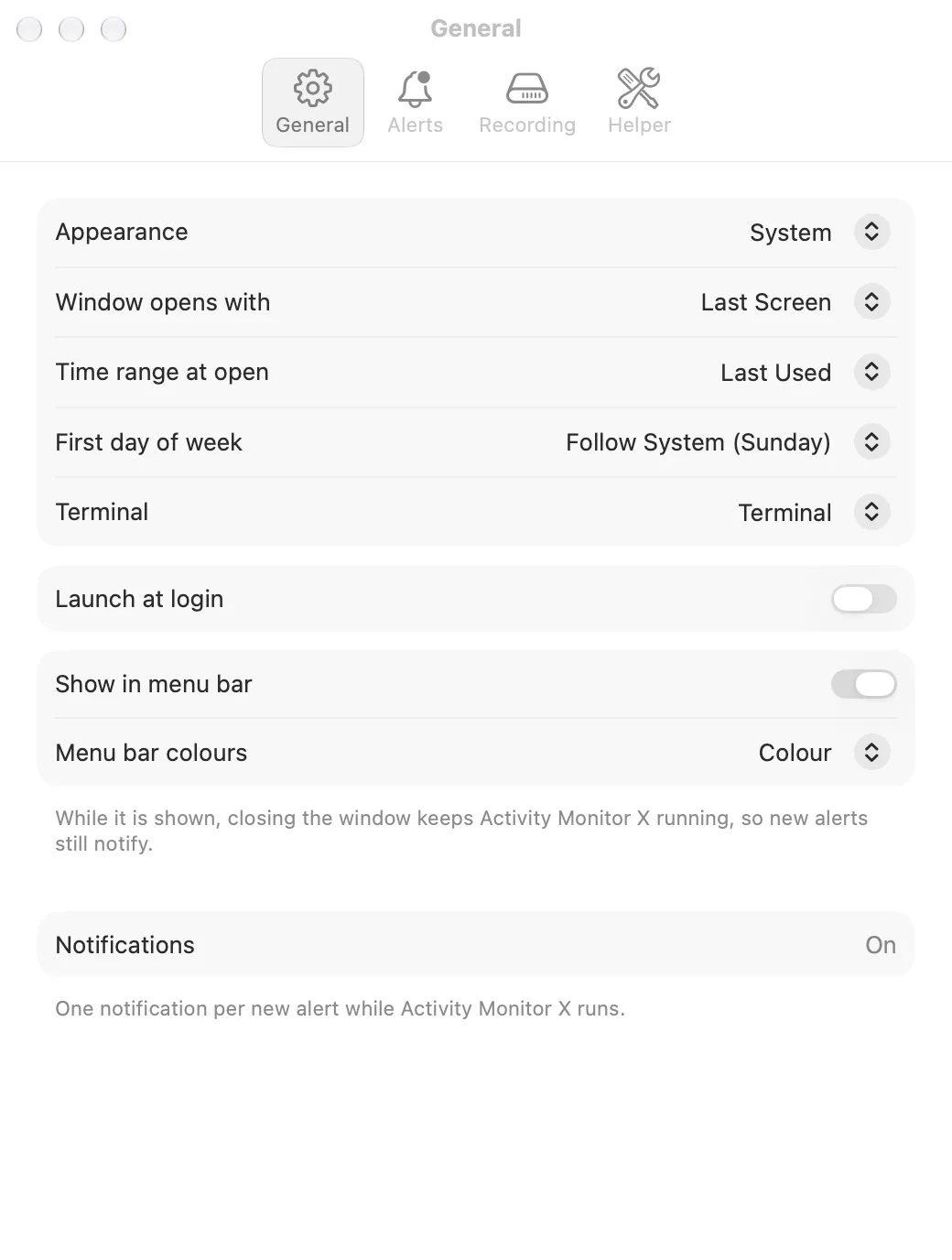
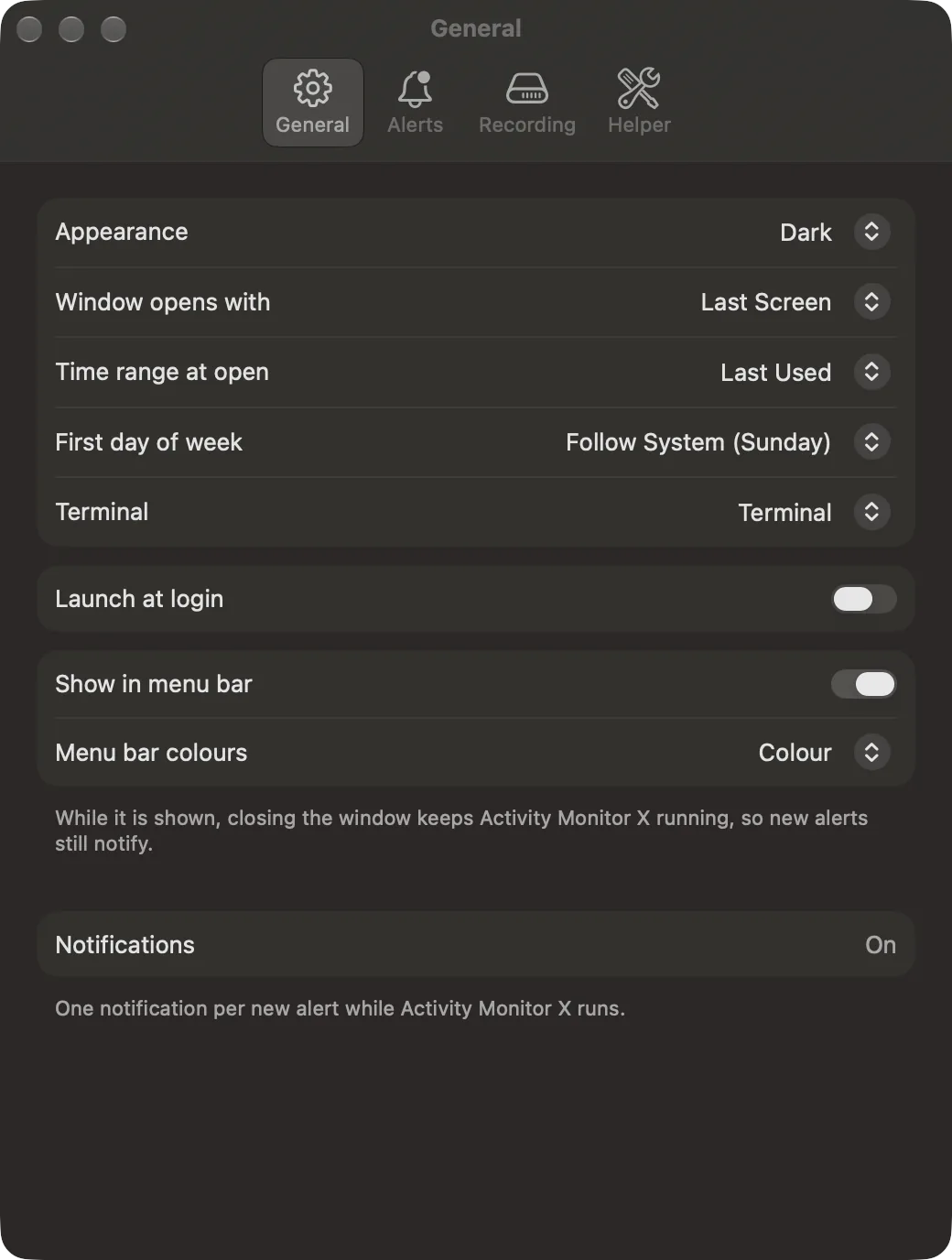 Settings > General.
## General
| Setting | What it does |
| --- | --- |
| Appearance | System, Light or Dark. |
| Window opens with | The screen at open: Last Screen, Apps, Calendar, Alerts, Energy, Disk or Hardware. |
| Time range at open | Last Used, or a fixed range. |
| First day of week | Follow System, or a day. Calendar uses it. |
| Terminal | The terminal app that Open in Terminal uses (Disk Space). |
| Launch at login | Opens the app when you log in. |
| Show in menu bar | Shows the [menu bar item](/menu-bar). |
| Menu bar colours | Colour or Greyscale. |
| Notifications | On, or a button that opens the Notification settings when they are off. |
## Alerts
The preset, the rules and **Banners for**. See [Alerts](/alerts#set-the-rules).
## Recording
- **Size cap:** the largest size of the history database, 2 GB by default, from 1 to 50 GB. Past the cap, the helper deletes the oldest history first.
- **Terminal Apps:** apps whose child processes count as their own app, not as the terminal. By default: Terminal, iTerm, Ghostty and rootshell. Click **Add Terminal App…** to add one. A change applies to processes that start after it.
The helper keeps these settings, so the app needs the helper to change them.
## Helper
The status of the helper. When the helper does not run, or is older than the app, this tab shows the install line. Run it in Terminal to install or update the helper, then click **Check Helper Again**.
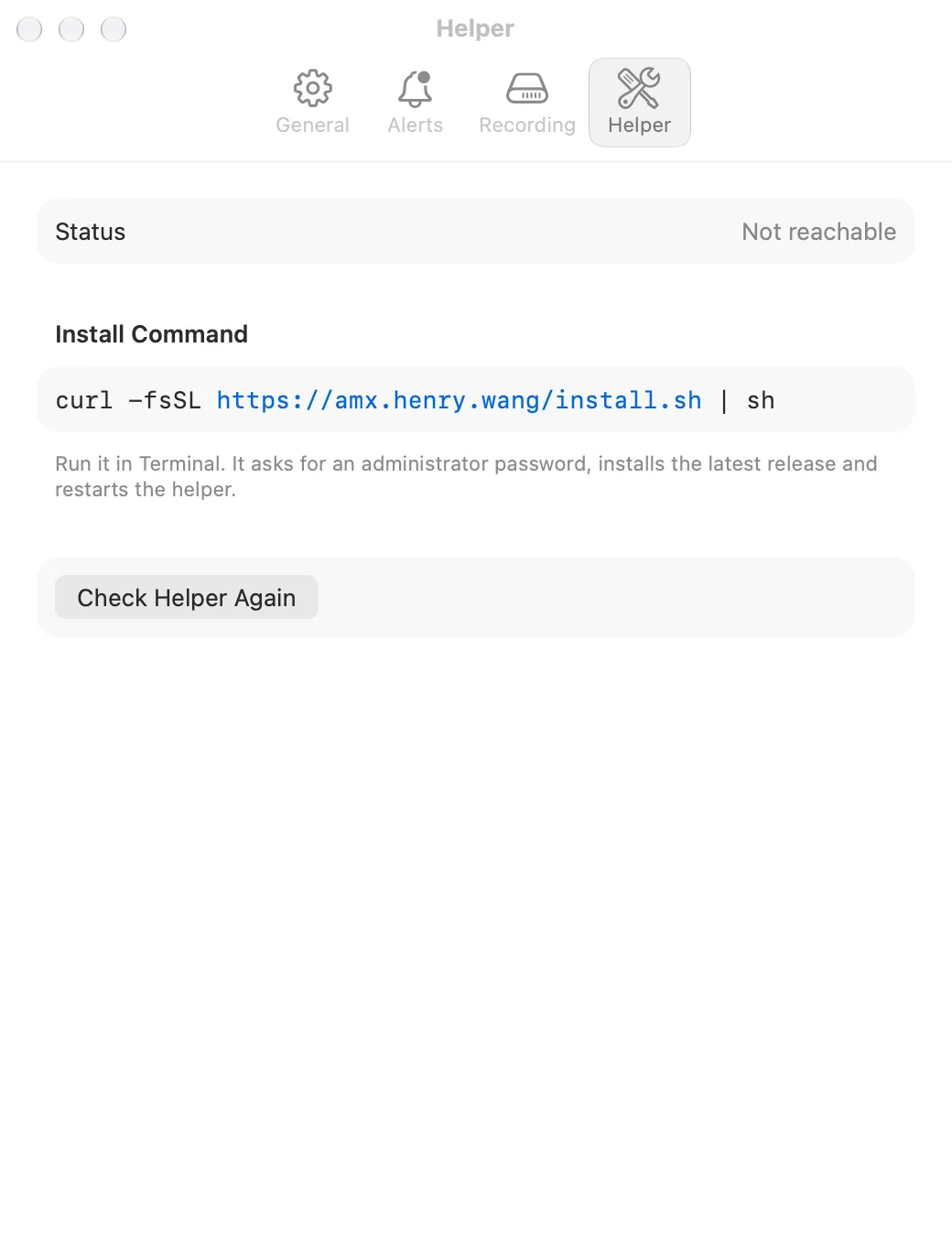
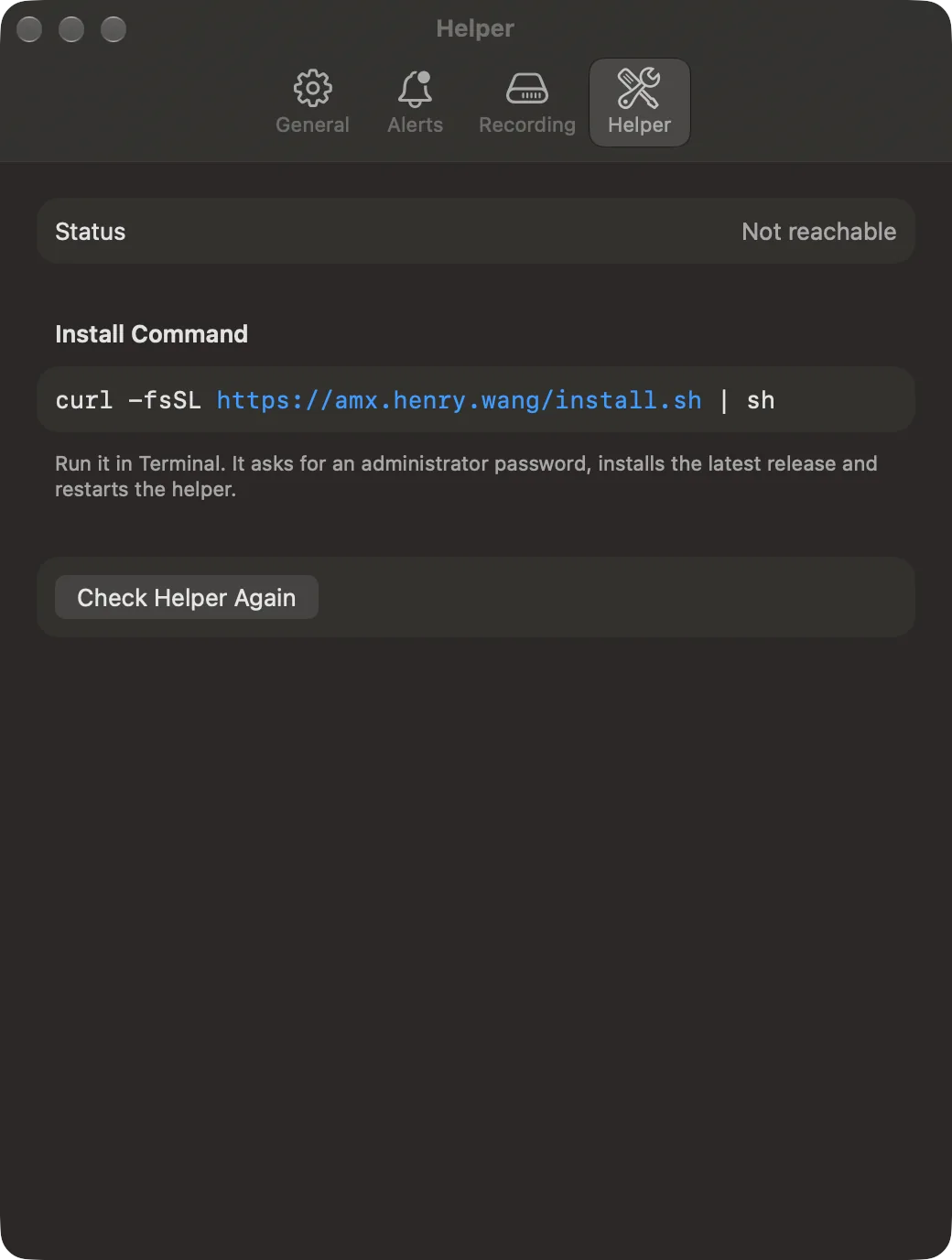 Settings > Helper when the app cannot reach the helper.