---
title: Hardware
description: The chip, memory, drives, displays and devices of the Mac, live, with a full inventory.
---
Hardware shows what the Mac has and what is connected to it. At the top is a drawing of the chip and the parts. Below it is the inventory, in the words that System Information uses.
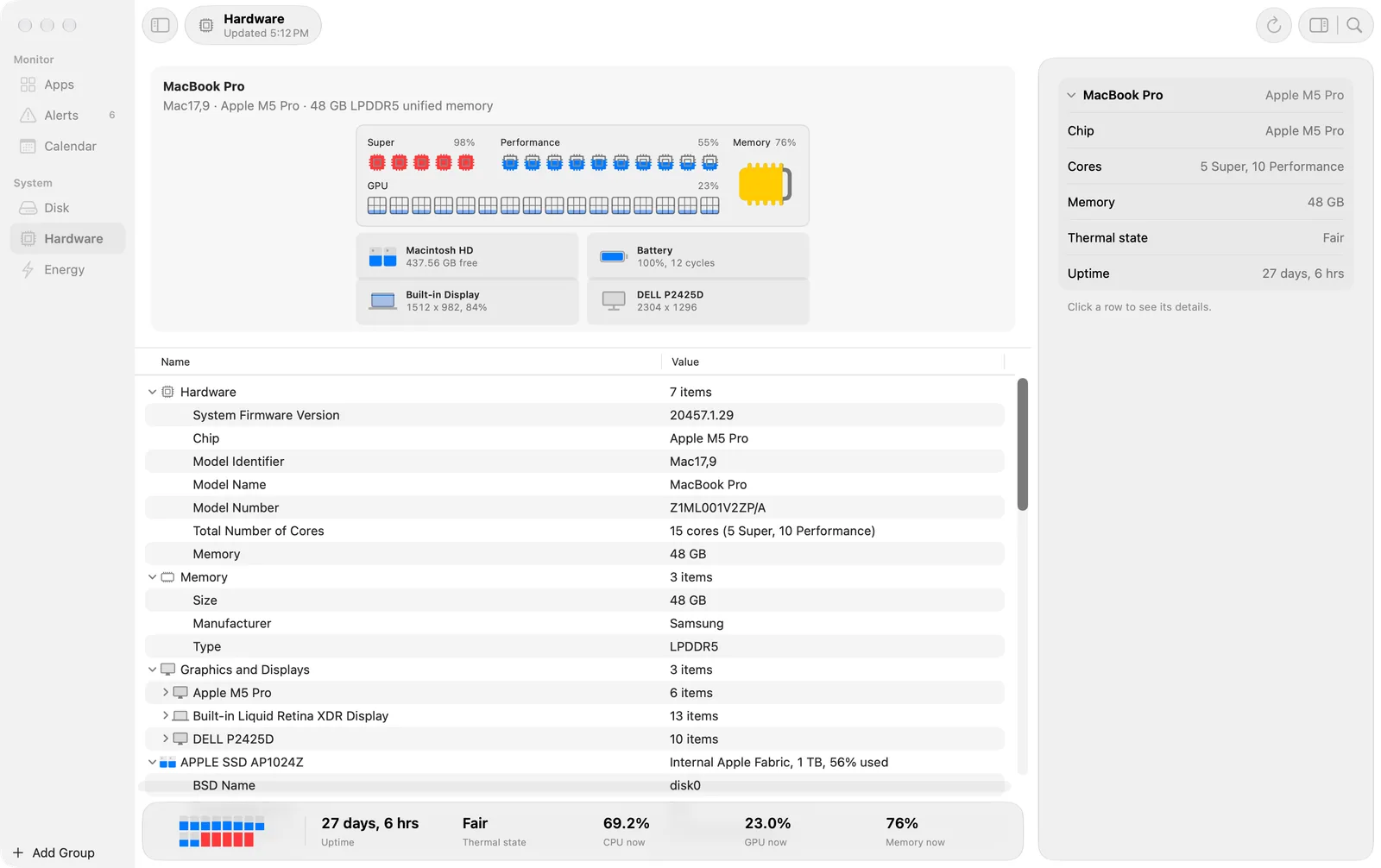
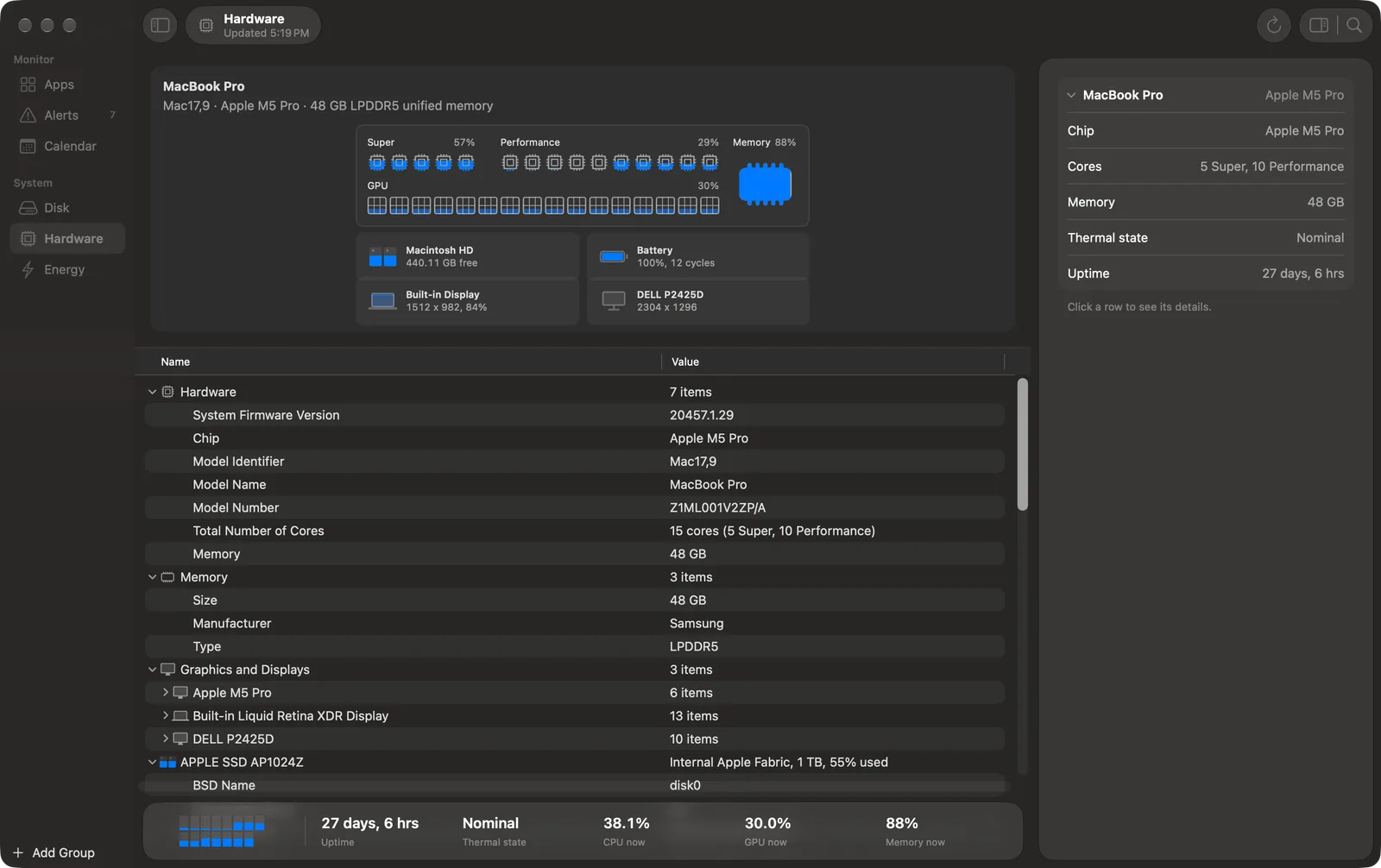 Hardware: the chip with each CPU core filled to its use, the GPU and memory, the parts beside it, and the inventory below.
## The chip
- Each CPU core fills from the bottom to its use, with the clusters side by side and the percent of each cluster.
- The GPU cores fill to the GPU total. macOS gives one total for all GPU cores.
- Memory fills to the memory used.
- While the System CPU rule is on, cores are yellow at its warning level and red at its critical level. Memory takes the colour of the memory pressure level.
## The parts
Beside the chip there is one cell for each part with data: the startup volume, the battery, each display and each external drive. Each cell is live: a volume fills to its use, the battery to its charge (with a bolt while it charges), and a display to its brightness where macOS reports it.
Click a part to select its row in the inventory. Select a row in the inventory to outline the part that owns it.
## The inventory
- Sections: Hardware, Memory, Graphics and Displays, Storage, Bluetooth, USB, Network and more, as in System Information.
- Connected Bluetooth devices are under their controller. Paired devices that are not connected are in a **Not Connected** group.
- Right-click a row for the useful actions: Connect, Disconnect and Forget… for a Bluetooth device (Forget asks first), Show in Finder, Show in Space and Eject for a volume, and the System Settings pane for a display, network or sound row. Every row has Copy and Show in Inspector.
- Search filters the inventory.
- The Refresh button in the toolbar reads the inventory again. A drive that you connect or disconnect also starts a new read.
## The footer
The footer shows each CPU core filled to its use, then the uptime, the thermal state, and the CPU, GPU and memory use now.
The shortcuts for the System screens are ⌘4 (Hardware), ⌘5 (Calendar) and ⌘6 (Energy).