---
title: Energy
description: Live watts from the power adapter and the battery, through the Mac, to the top apps.
---
Energy shows where the power of your Mac goes now. Power comes in from the power adapter and the battery at the left, goes through the Mac in the middle, and goes out to the top 5 apps and Other at the right. The width of each band is its watts.
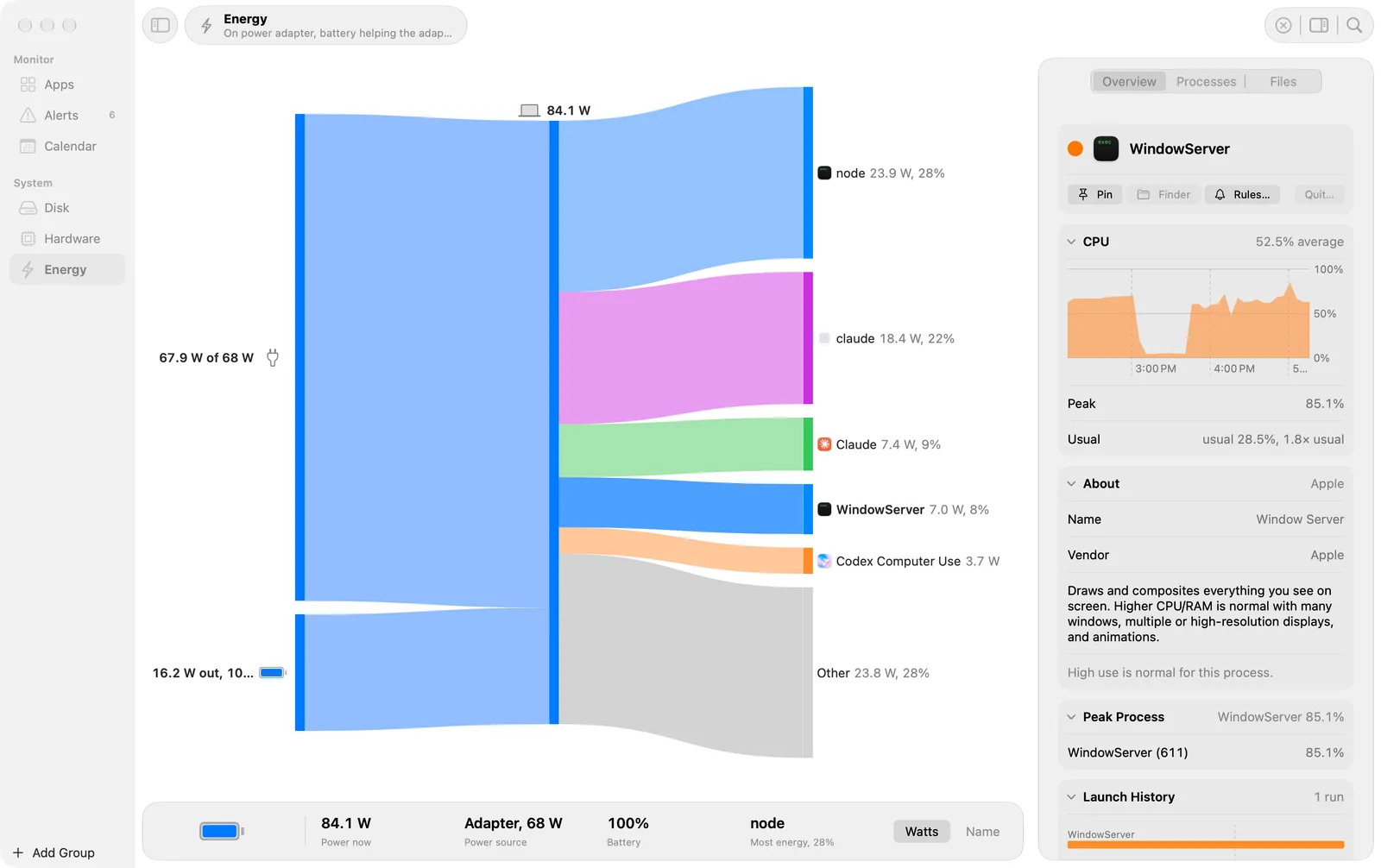
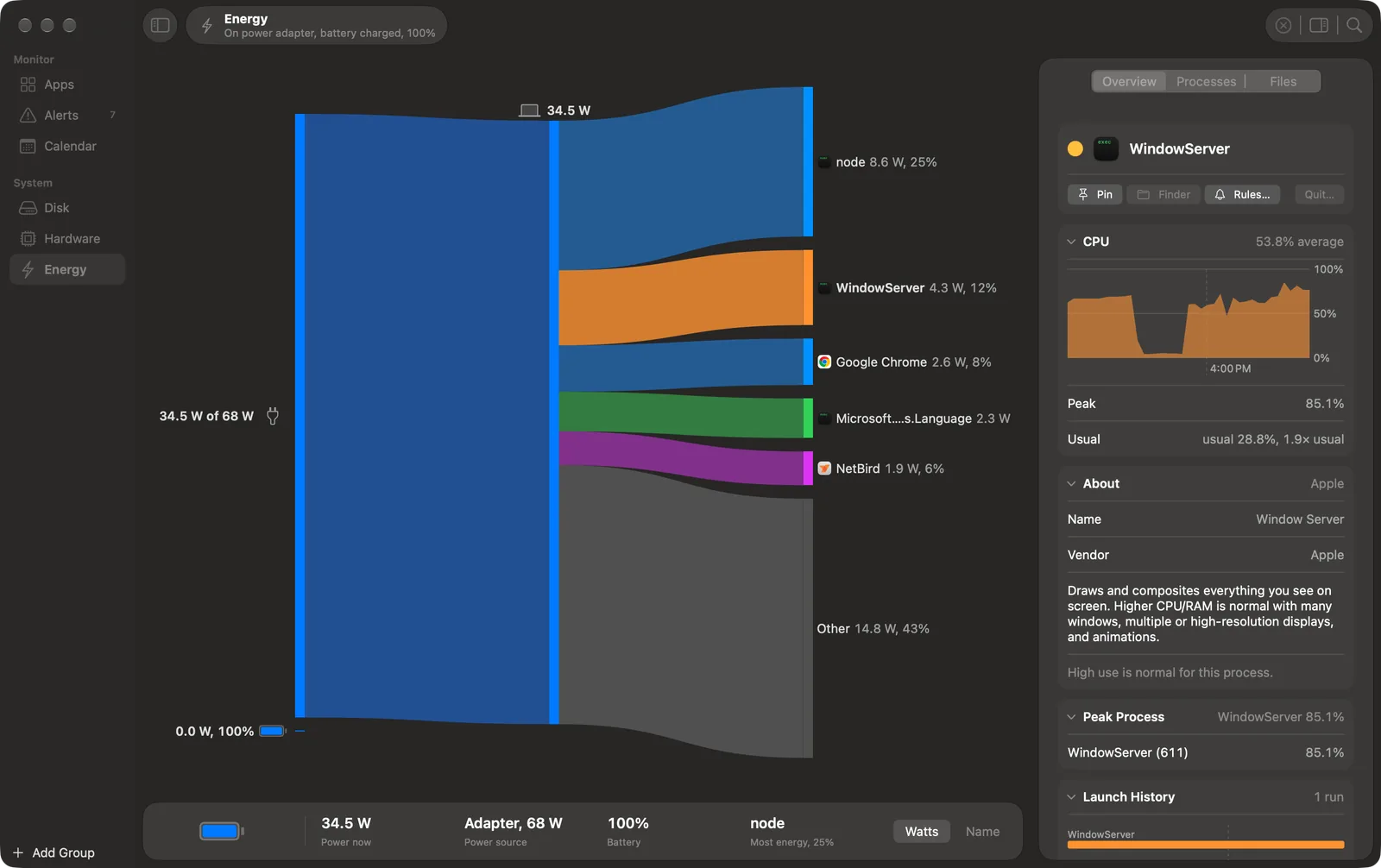 Energy on the power adapter, with the battery helping. Each app shows its watts and its share.
- The subtitle in the toolbar says the power state, for example "On power adapter".
- Click an app to open it into its top processes. Click it again to fold it. One app is open at a time.
- Right-click an app for Show in Inspector, Show in Apps, **Keep in Flow** or Remove from Flow, Pin or Unpin, and Colour. A kept app has its own band while it runs, also when it is not in the top 5.
- **Sort**, in the footer, orders the app bands by **Watts** (the default) or **Name**. Other is always last.
The watts of an app are an estimate. The helper calculates the energy impact of each process from its CPU use and its wakeups, then shares the power of the Mac by that impact.
## The footer
The footer shows the battery, the power now, the power source ("Adapter, 68 W"), the battery charge and the app that uses the most energy. On a Mac with no battery, it shows the system power for the last 5 minutes as a small line.
## With nothing selected
The inspector shows **Power** (the power now, its source and the battery) and **Top Apps** with the watts of each app.