---
title: Disk
description: Disk activity over time, the disks and volumes of the Mac, and a map of what uses the space.
---
Disk has two panes. Choose them with **Activity** and **Space** in the toolbar, or with View > Disk Activity and View > Disk Space.
## Activity
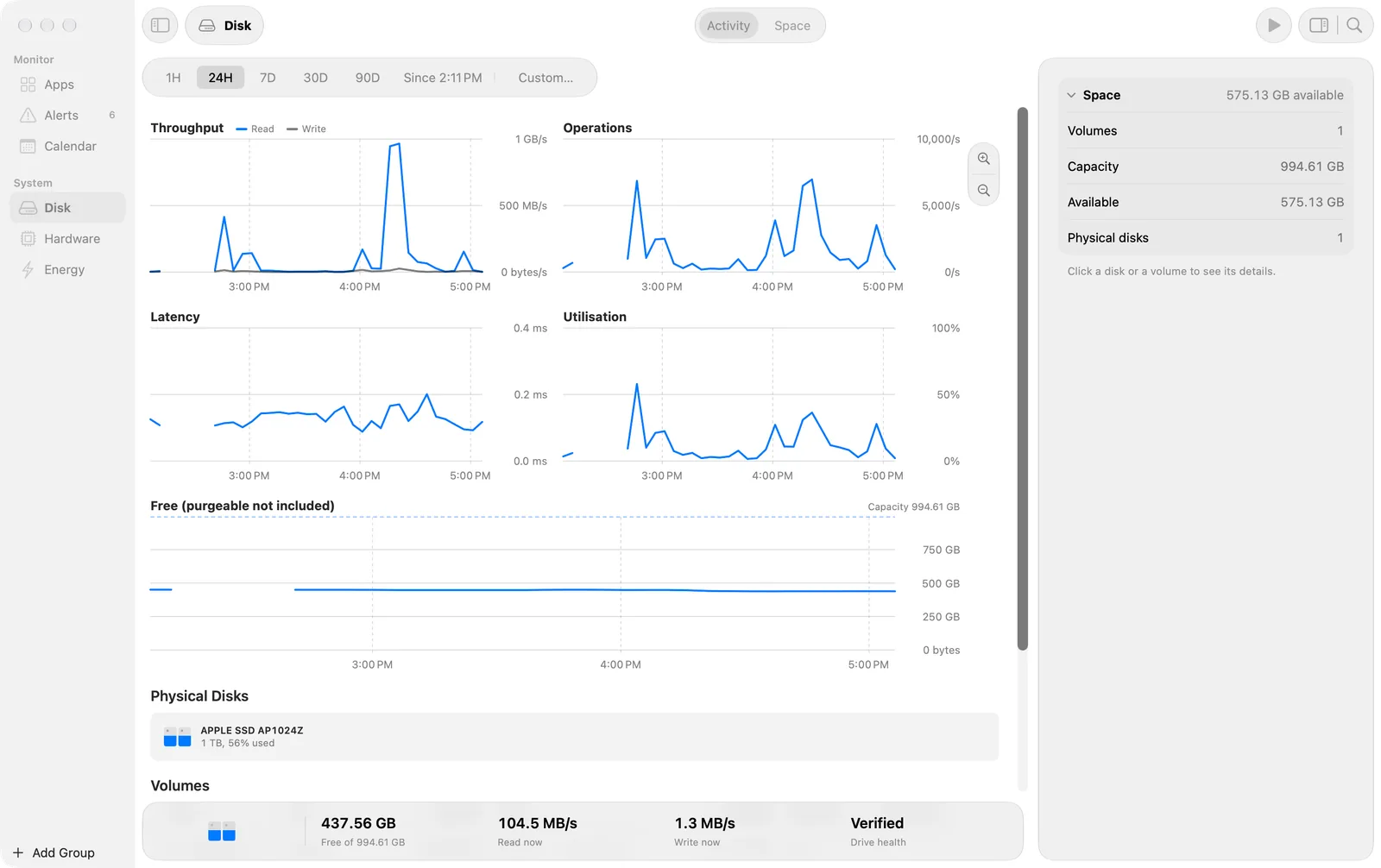
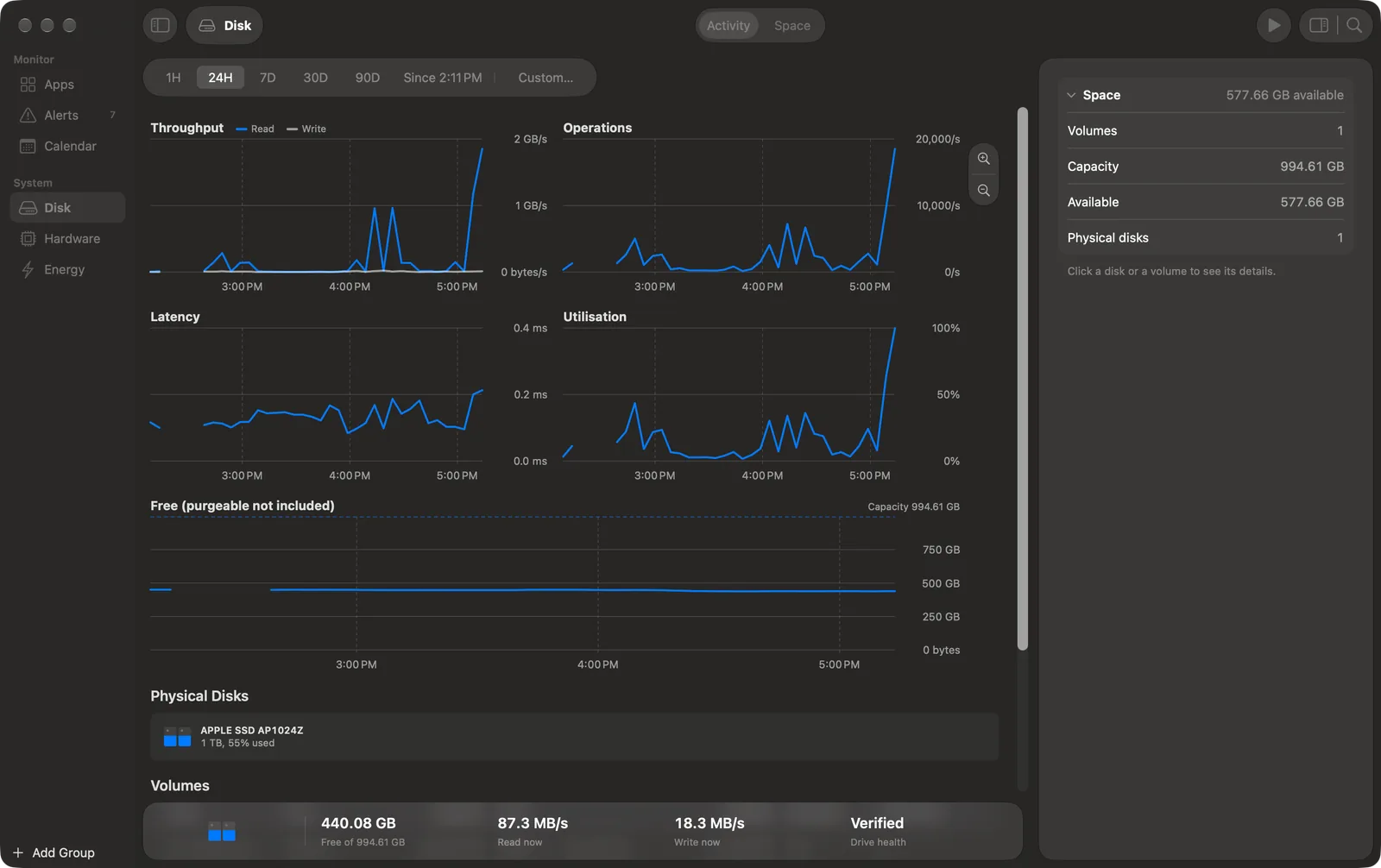 Disk Activity: throughput, operations, latency, utilisation and free space for the range, then the disks and volumes.
Activity has the same range bar, Live button and zoom pill as [Apps](/apps). Its charts are for the whole Mac:
- **Throughput:** bytes read and written each second.
- **Operations:** reads and writes each second.
- **Latency** and **Utilisation** of the disk.
- **Free:** the free space of the startup volume. Free space does not include purgeable space.
Below the charts:
- **Physical Disks:** one cell for each disk, with its name, size and use ("1 TB, 56% used"). Its SMART health and details are in the inspector.
- **Volumes** and **APFS containers:** tables of the mounted volumes. Right-click a volume for Show in Finder, Show in Space, Copy Mount Point and, for an external volume, Eject.
A volume is low on space when its free space is under 15 % of its size. The startup volume is also low when its free space is less than the memory of the Mac. Low space shows in yellow and in text.
The footer shows the startup disk, its free space, the read and write rates now, and its SMART health ("Verified").
## Space
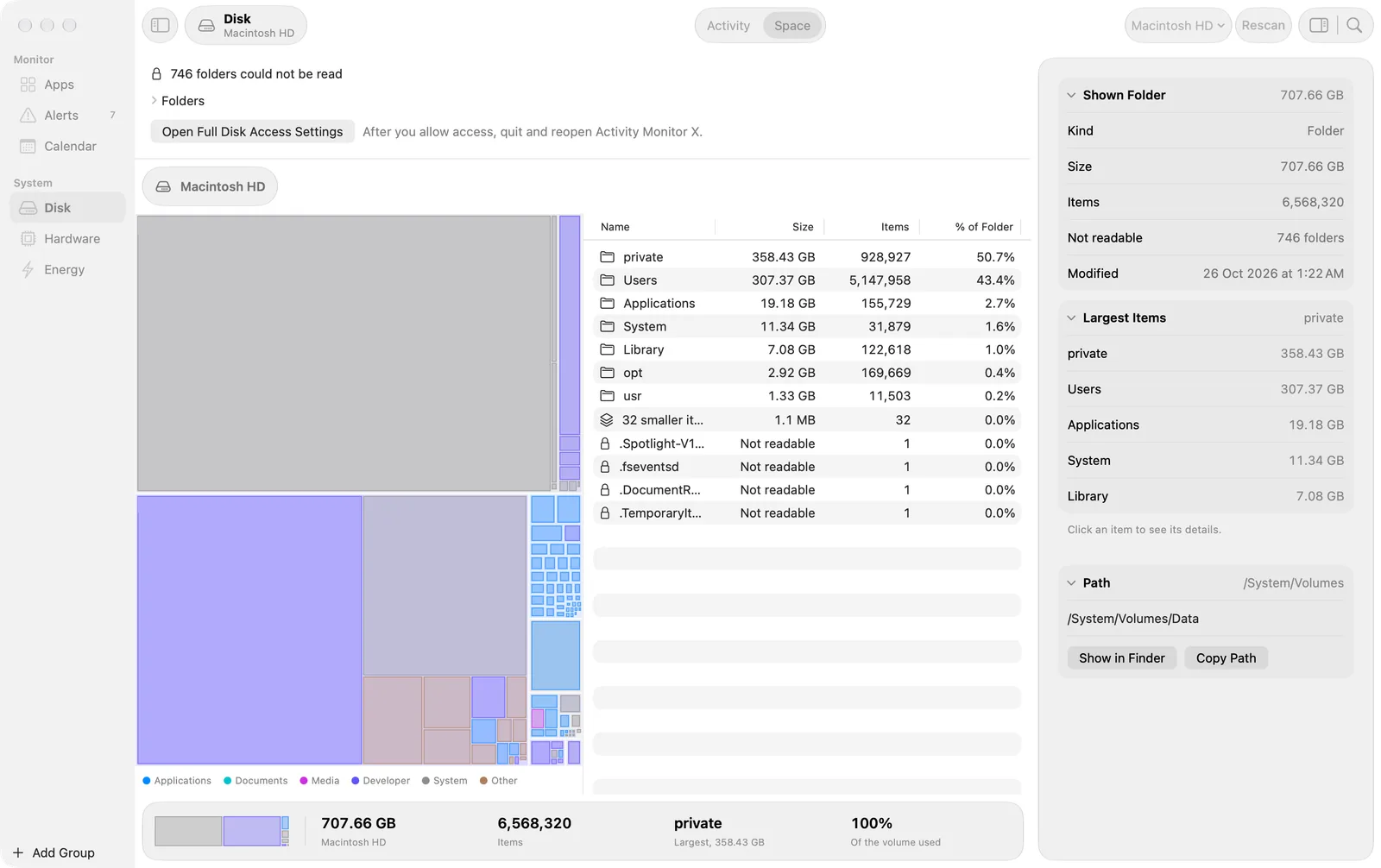
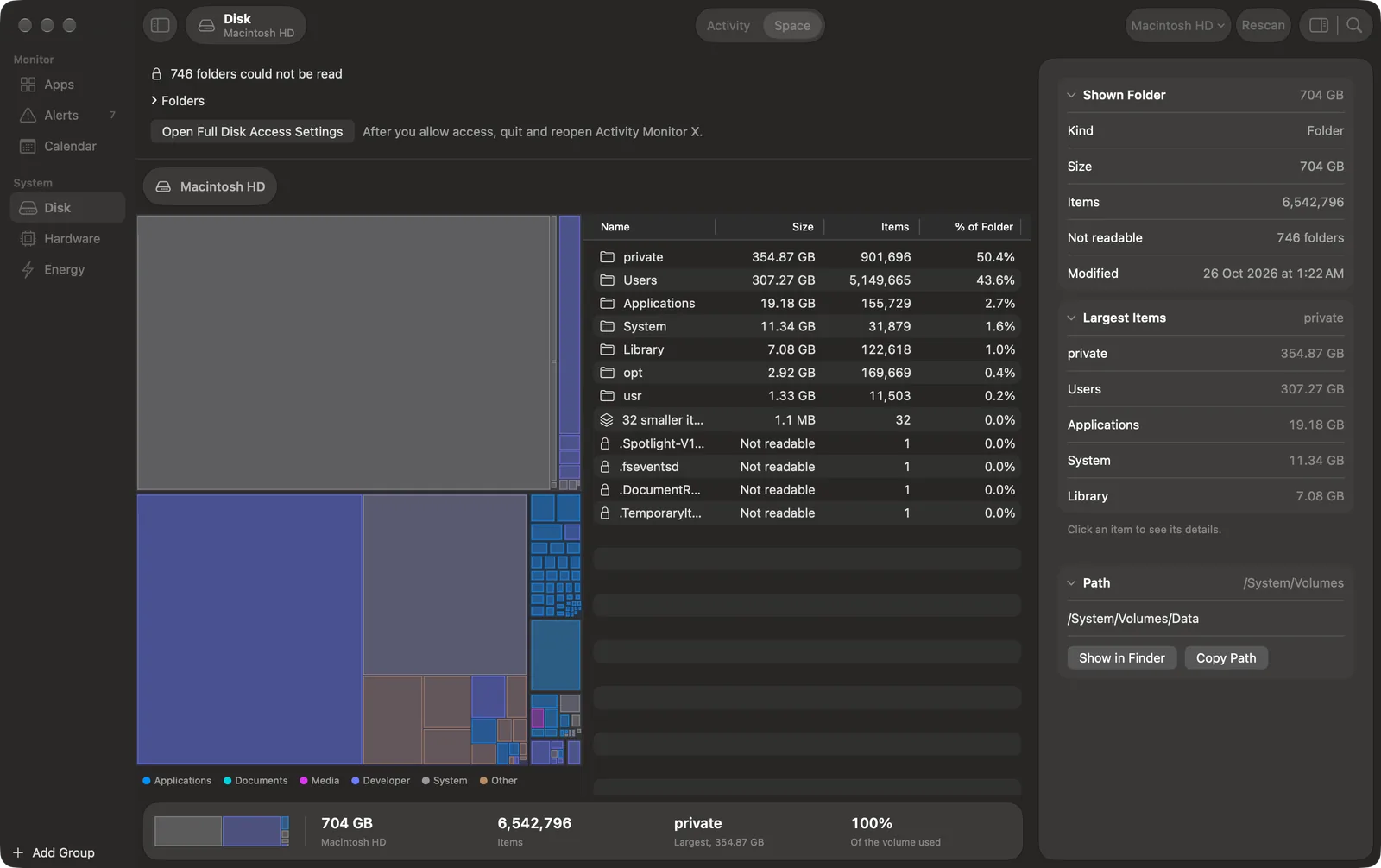 Disk Space after a scan of Macintosh HD: a map of the folders, a table of the largest items, and the inspector with the shown folder.
Space scans a volume or a folder and shows what uses its space.
1. Choose a volume, your home folder, or **Choose Folder…** from the pop-up in the toolbar. The scan starts at once.
2. A progress bar shows the items and bytes so far. Click **Stop** to stop the scan.
3. When the scan ends, the map and the table show the items of the folder. The colours show the kind of each file: Applications, Documents, Media, Developer, System and Other.
- Double-click a folder to go into it. Press Escape or choose View > Zoom Out (⌘[) to go up one folder. The path above the map shows where you are.
- Right-click an item for Open, Open With, Quick Look, Show in Finder, Get Info, Open in Terminal, Copy Path, Copy Name, Rename… and Move to Trash. Move to Trash does not ask first, because the Trash can restore the item.
- **Rescan** scans the folder again. The app keeps a map until you choose another target.
### Folders that cannot be read
macOS does not let an app read some folders, such as the data of other apps. Space lists them at the top and counts them as "Not readable". To scan them, click **Open Full Disk Access Settings** and give access to Activity Monitor X. Then quit and open the app again.